How to Connect to a Windows RDP Server (Windows, Mac, Linux, Android & iOS)
Connect to a Windows RDP server or VPS from Windows, macOS, Linux, Android or iOS, step by step - plus fixes for the most common RDP errors.
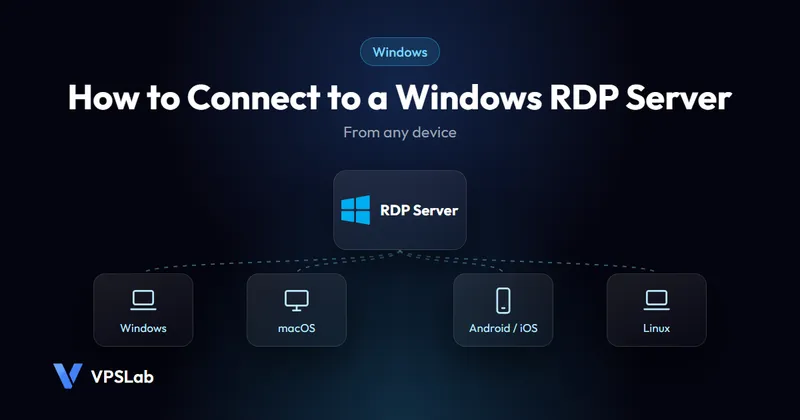
Remote Desktop Protocol (RDP) lets you use a Windows machine in a data centre as if it were sitting on your desk. Whether you've just deployed a Windows RDP VPS or need to reach an existing server, the process is the same: you need three things and a client app.
What you need before you connect
- The server's IP address (and port, if it isn't the default
3389). - A username - on a fresh Windows Server VPS this is usually
Administrator. - The password - sent to you when the server was provisioned. Change it on first login.
On VPSLab these details arrive by email as soon as the server is deployed, and you can also find them in the client area.
If your server uses a custom port, write the address as
IP:PORT, for example203.0.113.10:54321.
Connect from Windows
Every edition of Windows 10 and 11 includes the Remote Desktop Connection
client (mstsc).
- Press Win + R, type
mstscand press Enter. - In Computer, enter the IP address (or
IP:PORT). - Click Show Options to pre-fill the User name (
Administrator). - Click Connect, enter the password and accept the certificate prompt the first time.
Tip: under Show Options → General click Save As to create a .rdp
shortcut on your desktop. Under Local Resources you can choose whether your
clipboard, printers and local drives are available inside the remote session.
Connect from macOS
Microsoft's official client for Mac is the Windows App (formerly Microsoft Remote Desktop), free on the Mac App Store.
- Install and open Windows App.
- Click + → Add PC.
- Enter the IP address (or
IP:PORT) as the PC name. - Under Credentials, add the username and password, or choose Ask when required.
- Double-click the new tile to connect.
Connect from Linux
Two well-maintained open-source clients cover almost every distribution:
- Remmina (graphical): install it from your package manager
(
sudo apt install remmina remmina-plugin-rdpon Ubuntu/Debian), create a new connection profile, choose the RDP protocol and enter the server, username and password. - FreeRDP (command line): handy for scripts and quick connections.
xfreerdp /v:203.0.113.10:3389 /u:Administrator /dynamic-resolution +clipboard
On newer distributions the FreeRDP 3 binary may be called xfreerdp3 (or
sdl-freerdp3); the options are the same.
Connect from Android and iOS
Microsoft publishes free mobile clients:
- iPhone & iPad: install Windows App from the App Store.
- Android: install Microsoft's Remote Desktop / Windows App client from Google Play.
In each app, add a PC with the server's IP address and your credentials. A Bluetooth keyboard and mouse make longer sessions much more comfortable.
Fixing common RDP connection errors
"Remote Desktop can't connect to the remote computer"
Work through these in order:
- Is the server running? Check its status in your client area and that you can ping or reach it at all.
- Right IP and port? A custom port must be typed as
IP:PORT. - Firewall: the Windows Firewall on the server (and any network firewall) must allow the RDP port. If you recently changed the port, confirm the new rule exists and the Remote Desktop service was restarted.
- Your own network: some corporate, school and hotel networks block outbound port 3389. Try a different network or a custom port.
"An authentication error has occurred" / CredSSP errors
This usually means the security updates on your computer and the server don't match. Install the latest Windows updates on both machines. Avoid "fixing" it by weakening encryption policies.
"The remote computer requires Network Level Authentication"
Network Level Authentication (NLA) is a security feature that verifies your
credentials before a full session starts - keep it enabled. Make sure your
client is up to date and that you're entering the username exactly as
configured (for example Administrator, or .\Administrator for a local
account).
The password is rejected
- Check the keyboard layout - special characters often sit on different keys.
- Copy-paste the password from your email into a text editor first to make sure there are no trailing spaces.
- After several failed attempts the account may be temporarily locked; wait and try again, or reset the password from your client area.
The session is slow or laggy
- Lower the colour depth and turn off Persistent bitmap caching and visual effects under Show Options → Experience.
- Close bandwidth-heavy apps on your own connection.
- Choose a plan with enough CPU and RAM for the software you run - an under-sized server feels slow no matter how good the network is.
Make your RDP server safer in five minutes
Once you can connect, take a few minutes to lock it down:
- Change the default password to a long, unique passphrase.
- Keep Network Level Authentication enabled.
- Restrict which IP addresses can reach the RDP port, if you have a static IP.
- Turn on automatic Windows updates.
- Create a separate non-administrator account for daily work.
Our full walkthrough on setting up a secure, privacy-first Windows RDP server covers each step in detail.
Frequently asked questions
What port does RDP use? TCP port 3389 by default (newer clients can also use UDP 3389 for better performance). Servers can be configured to listen on a different port.
Can I connect to a Windows VPS from a Mac or Chromebook? Yes. Use Microsoft's Windows App on macOS. On ChromeOS you can use the Android client from Google Play.
Is RDP secure over the internet? RDP traffic is encrypted, but an exposed RDP port is a frequent target for password-guessing. Use a strong password, keep NLA on, apply updates and restrict access by IP where possible.
Need a Windows server to connect to? Deploy a Windows RDP VPS with full Administrator access in minutes - pay by crypto and sign up with just an email, thanks to our no-KYC signup.
Ready to deploy your own VPS?
Privacy-first hosting with crypto payments and instant setup.
Related articles
How to Set Up a Secure, Privacy-First Windows RDP Server on VPSLab
Step-by-step guide to deploying a hardened Windows RDP VPS with full admin access, crypto payments, and zero KYC - perfect for privacy-conscious remote work.
How to Choose a No-KYC VPS Provider: A Practical Checklist
Not every 'no-KYC' host is what it claims. Use this checklist to compare no-KYC VPS providers on signup, payments, terms, logging and reliability.
How to Pay for a VPS with Monero (XMR): Step-by-Step Guide
Pay for VPS hosting privately with Monero: choose a wallet, get XMR, send the exact amount at checkout and avoid the mistakes that delay deployment.